

General approach

When pitching an idea, it’s not just C-level executives or your direct manager you need to convince. If the execution relies on your team’s resources, you’ll also need their buy-in. Ultimately, your team will execute the idea, so their support is fundamental. In many ways, their backing can be the most critical factor in ensuring the idea’s success. As Napoleon Bonaparte famously said, “Soldiers generally win battles; generals get credit for them.”
When pitching to your team, you need to know their WHYs - why they do what they do and what drives them. One might be motivated by the opportunity to work with cutting-edge technology, while another might be primarily driven by financial benefits.
To gain your team's buy-in, tailor your pitch to address their motivations. Use the self-reference effect (a psychological phenomenon where people are more likely to remember & react to information that relates to them) to make your pitch more relatable to them.
Unlike pitching to executives or managers who may be directly interested in revenue and business growth, your team members may have different interests and motivations. Sometimes, even the greatest expert works just for money, which is completely okay.
That's why you should use the In media res technique. Kick off your pitch with something engaging and relevant to your team, without initially providing business impact context. Remember the Matrix and the scene with Trinity in the phone booth? That's what kept all of us watching an extremely complex movie. Imagine if The Wachowskis had started with a long explanation of how the world works. We would have empty theaters.
Remember, winning your team equals winning the war.
Step-by-step guide
Understand the why's behind each team member's motivations
As Benjamin Franklin said, "If you would persuade, appeal to interest and not to reason." Surprisingly, your team members might have motivations that aren't immediately obvious. Not everyone is motivated solely by financial benefits, and sometimes people continue working for other reasons, even if they don't like the company.
Identify everyone who will be crucial in executing your idea and understand what drives them to do their best work. Tailor the problem statement and solution plan to address these motivations.If someone is motivated by innovation, allow this person to choose the technology to use. For someone seeking praise, mention that your work might be featured in a conference, etc.
Craft your message
Start by outlining your main goal and understanding how your pitch will help you achieve it, whether it's seeking resources, approval, or in this case the help of your team. Then, come up with one key message that will persuade your team to support you in reaching the goal.
I.e. We will create a new presentation tool that will increase the likelihood of a successful presentation by 90%, for everyone.
Provide context with the right level of detail
Cut unnecessary details. Different audiences require different levels of detail. For example, when pitching to C-level executives, focus on the business side of your idea and leave out technical details (unless you're pitching to the CTO).Similarly, when pitching to your team, choose the appropriate level of detail. When pitching to engineers, include more technical details. When pitching to a diverse audience, include fewer technical details and focus more on the problem's reasons and potential outcomes if the problem is fixed.
No one wants to listen to a presentation about something unimportant or disinteresting to them.
Highlight the why behind the problem and proposed solution
In addition to understanding the individual motivations of team members, it's important to highlight the rationale behind the problem and the proposed solution.
People are more likely to support your idea if they understand the underlying reasons. For instance, in the well-known terrifying Milgram experiment, individuals were more inclined to do bad things to others if they were provided with "it is for scientific purposes" reason.
On a more positive side, there is Carl Braun’s corporate policy:
If you were going to issue a directive, you had to tell the person Who, What, When, Where, and most importantly, Why someone was to do it.
It's crucial to be honest and transparent.
Address the individual whys of each team member.
Then, as discussed in step no 1, there's another level of whys - individual team member motivations. For team members motivated by financial incentives, emphasize the possibility of bonuses or a potential raise. For those interested in innovation, allow them to pick the technology to be used, etc.
It's important to avoid making unrealistic promises.
Communicate a clear call-to-action
This will be the climax of your pitch. It's time to make the ask or initiate an action.Outline your CTA in the following format:
What: I.e. Propose a solution for the new presentation toolWho: I.e. Participating team members
When: I.e. This week
Ask for feedback
Finally, since your team will be responsible for executing the solution, they are likely the best people to choose the approach. After presenting your idea, be sure to ask "HOW" questions.
Ask about the flaws they see, the best approaches to building the solution, and if there's anything you can do to help them achieve the goal.
Keep in mind!

Don’t skip the negative feedback
Negative feedback from your team is precious. When pitching new ideas, you may face disagreements or even warnings that your idea could fail.
While some of this pushback may stem from a phenomenon called resistance to change, it’s important to realize that this feedback is often reasonable. Your team, being on the front lines, may have deeper insights into potential issues.
Unfortunately, leaders often overlook feedback from lower levels of the organization, dismissing it as less significant. This can lead to poor decision-making, wasted resources, and a loss of trust and confidence from employees.













What is Deckster?
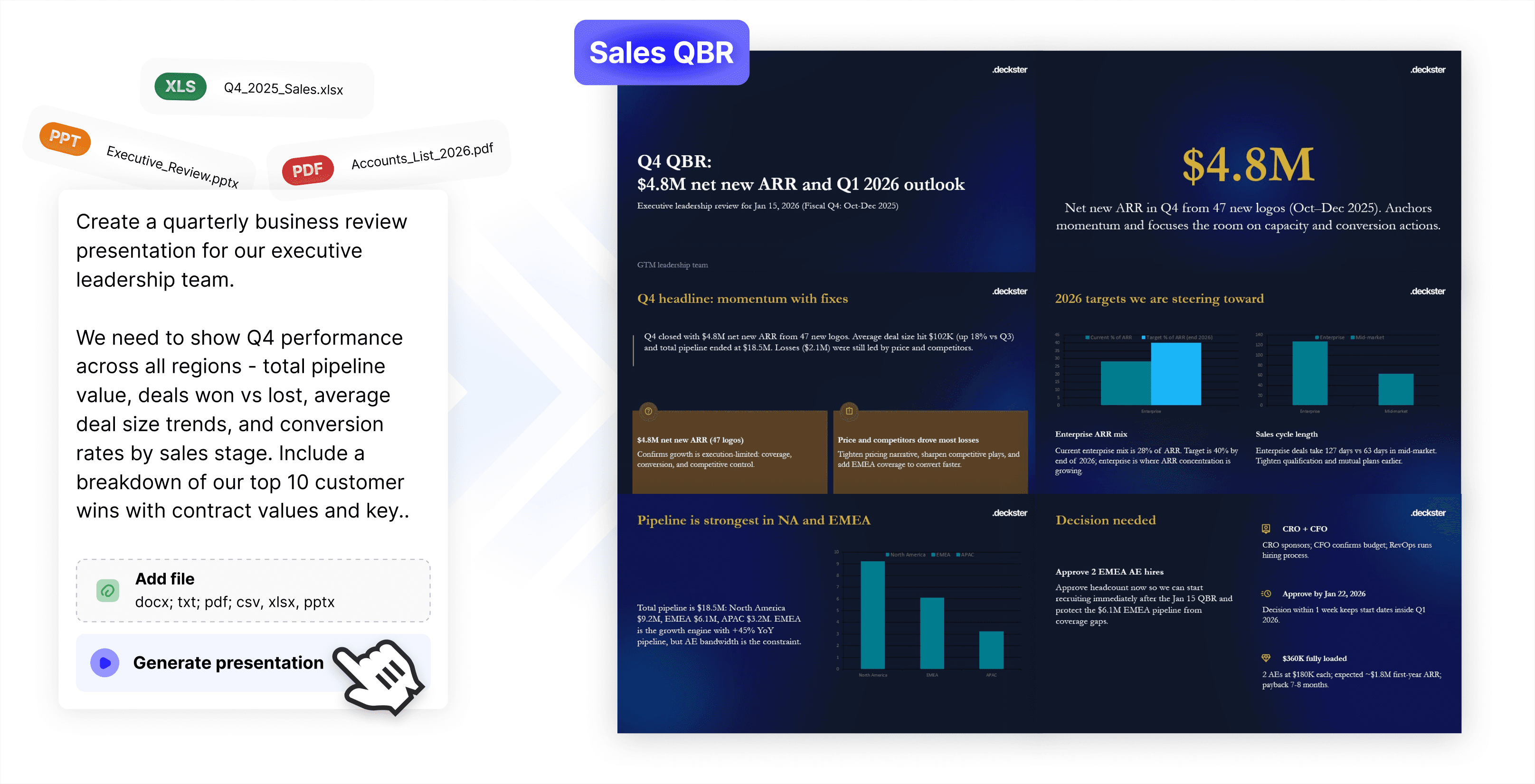
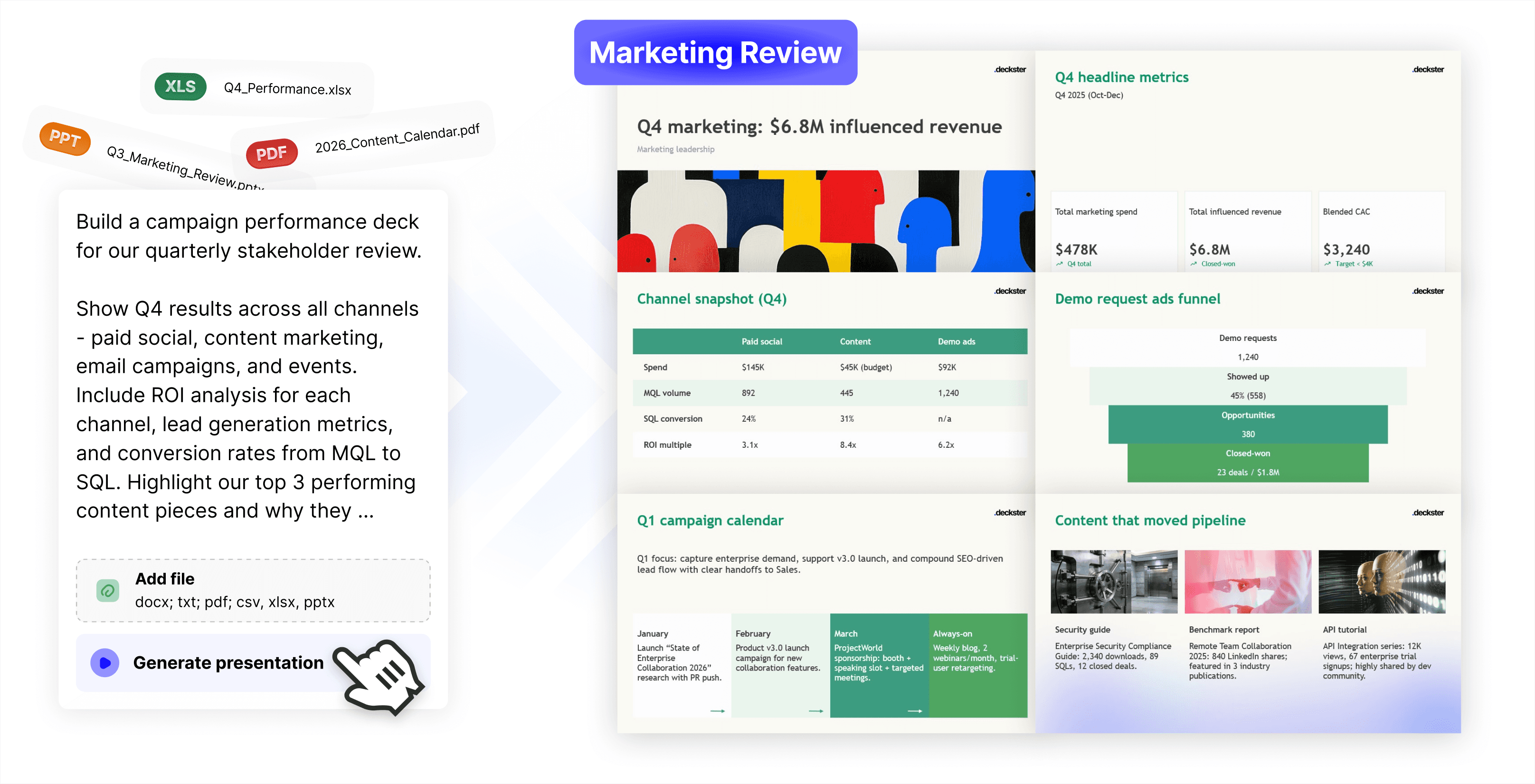
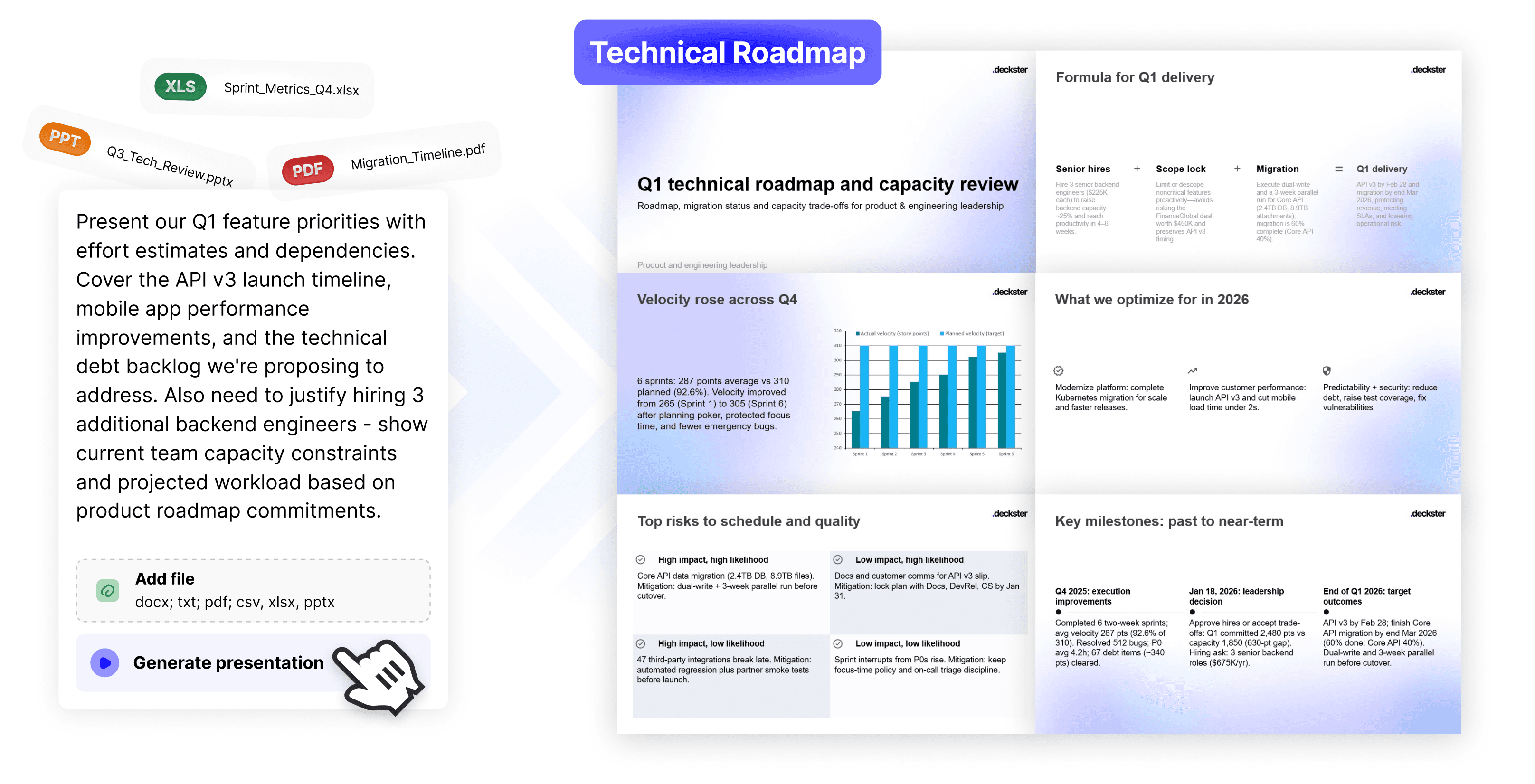
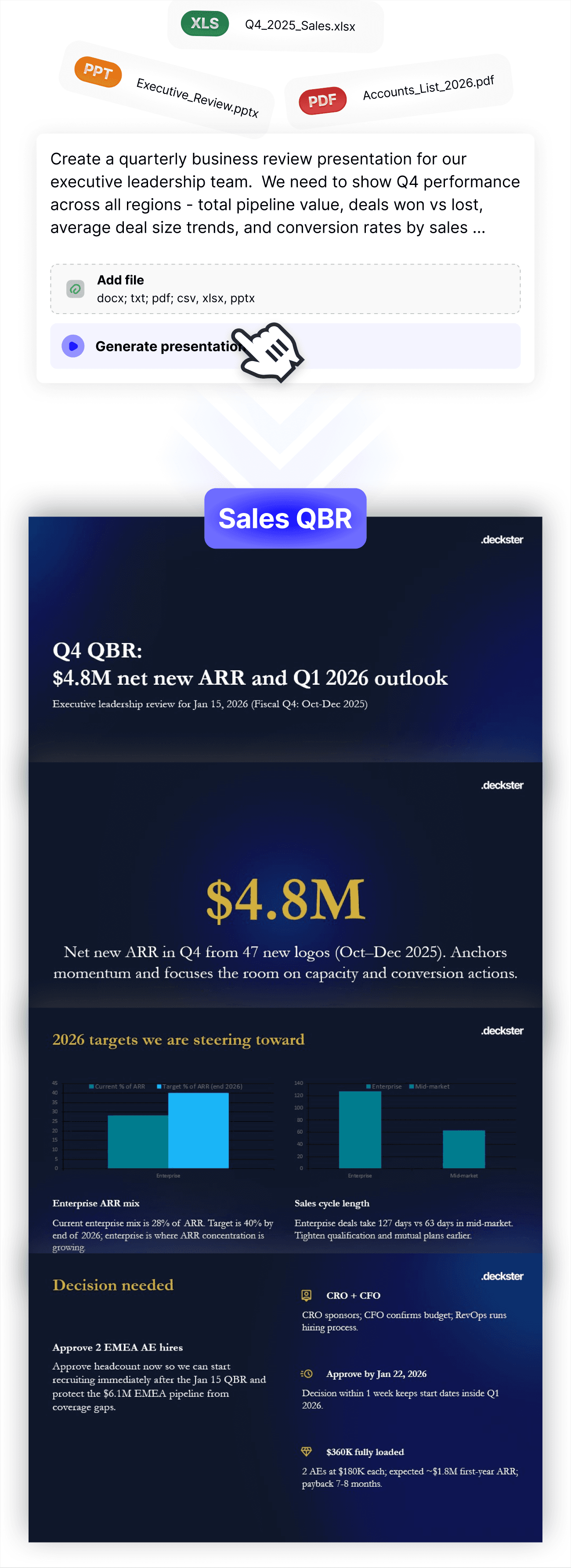
Deckster compresses the entire presentation workflow into fast iterations. Draft the narrative, test different structures, and refine the argument in minutes - without fighting layouts. See each version instantly as real slides, so the feedback loop is immediate. When it clicks, export a fully editable PowerPoint or Google Slides file and finish with full control.
How do I use Deckster?
Just tell Deckster what you're working on - paste notes, upload documents, or describe your idea. Deckster analyzes your input, detects the audience and presentation type automatically, and asks clarifying questions to fill in any blanks. Within 5-10 minutes, you get a structured draft with auto-generated charts and analysis. Then refine: regenerate slides, adjust structure, swap visuals, edit content. Export to PowerPoint or Google Slides when you're ready for final touches.
What makes Deckster different from other AI presentation tools?
Deckster is the only tool that works with native PPTX/Google Slides specifications, resulting in perfect, consistent, and fully editable exports (yes, even charts)! Other than that, most tools let you edit every component, creating endless design choices that slow you down. Deckster uses a design system approach - layouts are locked, but you can edit what actually gives your presentation character: text, images, icons, charts. This creates speed through constraint, embedded persuasion logic in every component, and 10x faster iteration. Other tools optimize for visual flexibility. We optimize for clear thinking and a real business environment, where your presentation opens perfectly every time - no corrupted files, no compatibility errors. No broken layouts. No charts that are images. No watermarks. Just a clean, fully editable file you own.
Can I try it for free?
Yes. Create presentations with full access to the AI engine, slide library, chart generation, analysis, and export. You have 3 free presentations to try Deckster out, no constraints, no predatory billing, just you to decide.
Is Deckster compatible with PowerPoint and Google Slides?
Deckster not only exports to PowerPoint and Google Slides - it exports perfect, fully editable native files. We use a proprietary engine that works directly with PPTX and Google Slides specifications, producing files that look and behave exactly as if they were created inside PowerPoint or Google Slides. And yes - the charts aren’t images. They’re real, fully editable charts.
What if I don't like the slides Deckster generates?
While Deckster is great for drafting “one-shot” presentations, it’s built for iteration. You can refine the structure, adjust the format, change slide count or style, emphasize or remove topics, and continuously improve the narrative. Regenerate individual slides with specific instructions (“make this more data-driven” or “focus on ROI”), restructure the entire deck (“add an implementation timeline”), or swap layouts in seconds. Deckster is designed for iteration - the first draft is the starting point, not the endpoint.
Does Deckster work for technical presentations with data and charts?
Yes. Upload data files (CSV, Excel) or provide data in your prompt. Deckster auto-generates charts and performs analysis on the data. Charts are fully editable - adjust data, labels, chart types, styling. For complex technical diagrams or custom illustrations, you'll create those separately, but Deckster handles all standard business charts and data visualization.
Who uses Deckster?
Deckster is built for business presentations where clear thinking and strong structure matter. It’s designed primarily for boutique consultancies, corporate strategy teams, and operators who need to turn messy inputs into persuasive, decision-ready decks. If your work involves shaping arguments, aligning stakeholders, or making complex ideas easy to act on - Deckster fits naturally.
Can Deckster enhance existing PowerPoint decks?
Not directly. Deckster isn’t built for polishing or editing existing PowerPoint files. Instead, you can upload your current deck as input and ask Deckster to rebuild it from scratch - with a fresh structure and a different visual style.
What should I know before using Deckster?
Deckster is not a design tool. It’s a presentation drafter built for content, structure, and persuasive flow - not pixel-level layout work. You can make light styling adjustments, but you can’t freely move elements around a canvas like in PowerPoint or Figma. Deckster is designed for iteration: you start with a strong 80–90% draft, then refine slide-by-slide with AI - adjusting emphasis, structure, and messaging as you go. If you value clear thinking over manual design, and your workflow benefits from fast iteration, Deckster will fit naturally.